

Double the security, twice as much peace of mind
Like a lock for your lock, our Mobile Authenticator lets you log in using a unique, one-time code.
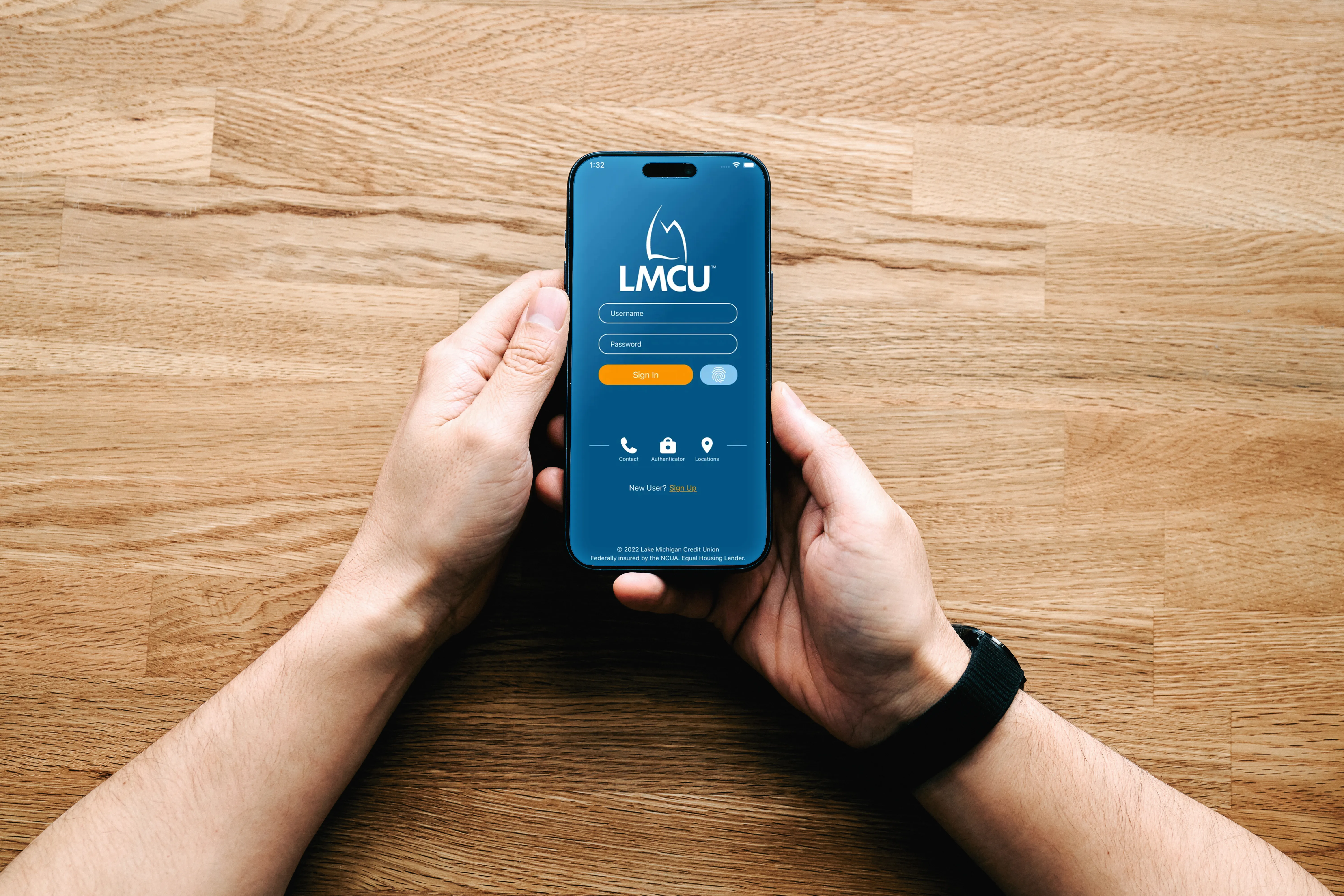


Extra protection
Add another layer of security when you sign in to Online Banking.


One-time code
We’ll send you a unique code in the LMCU app to use instead of your password.1


Simply secure
Once activated, log in to Online Banking, then open our app to get your code.

How to use our Mobile Authenticator

Download or update the LMCU app
Make sure you have the latest version of the LMCU mobile app and have signed in at least once.

Turn on Mobile Authenticator in Online Banking
Go to Online Banking Settings, then Security, and enable Mobile Authenticator.

Use your code to sign in
When you sign in on LMCU.org, open our app to get your code and enter it before it expires.

Mobile Authenticator FAQ
These FAQs can help you understand how Mobile Authenticator works and what to do if you need support.
Your LMCU account is already secure by design, but our Mobile Authenticator makes it even safer from password thieves and breaches by adding an extra layer of security when you sign in to Online Banking from our website.
Instead of entering your usual password, you’ll open the LMCU app to get a one-time code you can use to sign in.
Yes. Our Mobile Authenticator uses the LMCU mobile app to generate your one-time code. Before using our Mobile Authenticator, make sure you have the latest version of the LMCU app and have signed in to it at least once.
To keep your account safe from prying eyes, each Mobile Authenticator code is only valid for 30 seconds. Once you open the LMCU app, be ready to enter your code on LMCU.org immediately.
No. Creating a 4-digit personal PIN is optional. If you choose to set one up, the LMCU app can generate a longer, even more secure 10-digit code for you to use when signing in.
Mobile Authenticator codes expire in 30 seconds, so it’s important to enter your code right away.
If you’re still having trouble, make sure you’re using the latest version of the LMCU app and that you’ve already signed into the app at least once.
If the problem continues, consult the LMCU Help Center or contact us for support.
If you need help turning on our Mobile Authenticator or signing in to Online Banking, our Help Center is a good place to start.
If you still need assistance after that, you can contact us for more support.
If you plan to switch phones, make sure you can access the LMCU Mobile App on your new device before relying on our Mobile Authenticator.
If you need help re-establishing access, start with our Help Center or contact us for support.

Need Direct Support?
Contact our 24/7 Support Center for direct support with Mobile Authenticator or Online Banking.
Disclosures
Third party internet/mobile/data fees may apply.
